Guide · switching from Trello
How to import a Trello board into Simpleban
Updated · by the Simpleban team
In short
To import a Trello board into Simpleban, open the board in Trello, choose Menu → Print, export, and share → Export as JSON, save the file, then open Simpleban and pick Import from Trello (in the board menu, or at simpleban.app/import). Lists become columns, cards keep their description as notes, checklists become one-click checklists, labels are listed in the notes and due dates stay due dates. Archived lists and cards are left behind. It takes about a minute and nothing in Trello changes.
Step by step
Trello keeps the export behind two menus, but it is one file and it contains everything on the board. Simpleban reads that file in your browser — the import happens on your side, and you see a preview before anything is created.
- In Trello, open the board and click the ⋯ menu on the right
- Choose Print, export, and share → Export as JSON (the Free plan includes it)
- Save the file — it ends in .json
- In Simpleban, open the board menu (the arrow next to the board name) → Import from Trello…, or go to simpleban.app/import
- Choose or drop the file, check the preview — lists, cards, notes, dates — and rename the board if you like
- Click Import board. You land on the new board; your other boards are untouched
What comes along, and what doesn't
Everything that has an equivalent in Simpleban comes along. The things Simpleban deliberately doesn't have — power-ups, automations, custom fields, attachments stored at Trello — don't.
- Lists → columns, in the same order. A list named Done (or Finished, Complete, Shipped…) becomes your Done column; if there is none, a Done column is added at the end
- Cards → cards, in the same order, with the description as markdown notes
- Checklists → Simpleban checklists inside the card, ticked items stay ticked
- Due dates → due dates (the day, in your calendar)
- Labels → a “Labels: …” line at the end of the notes, so nothing is lost even though Simpleban has no labels
- Archived lists and cards, members, attachments, comments, stickers and custom fields are not imported
After the import
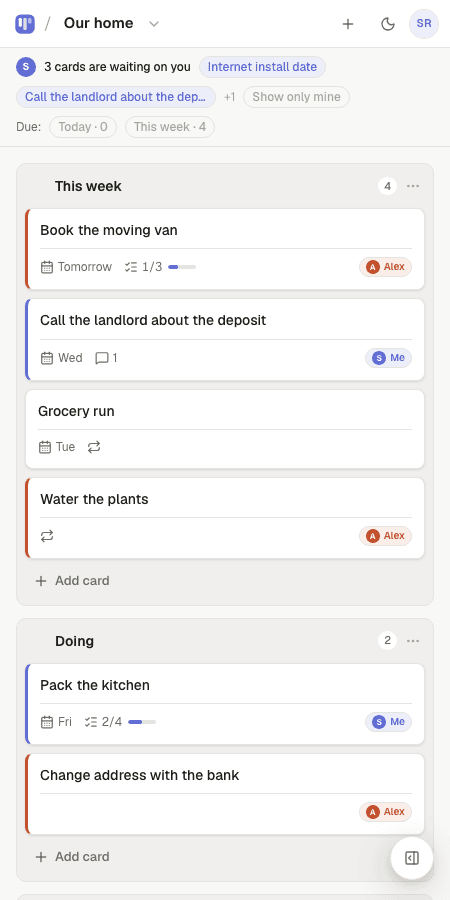
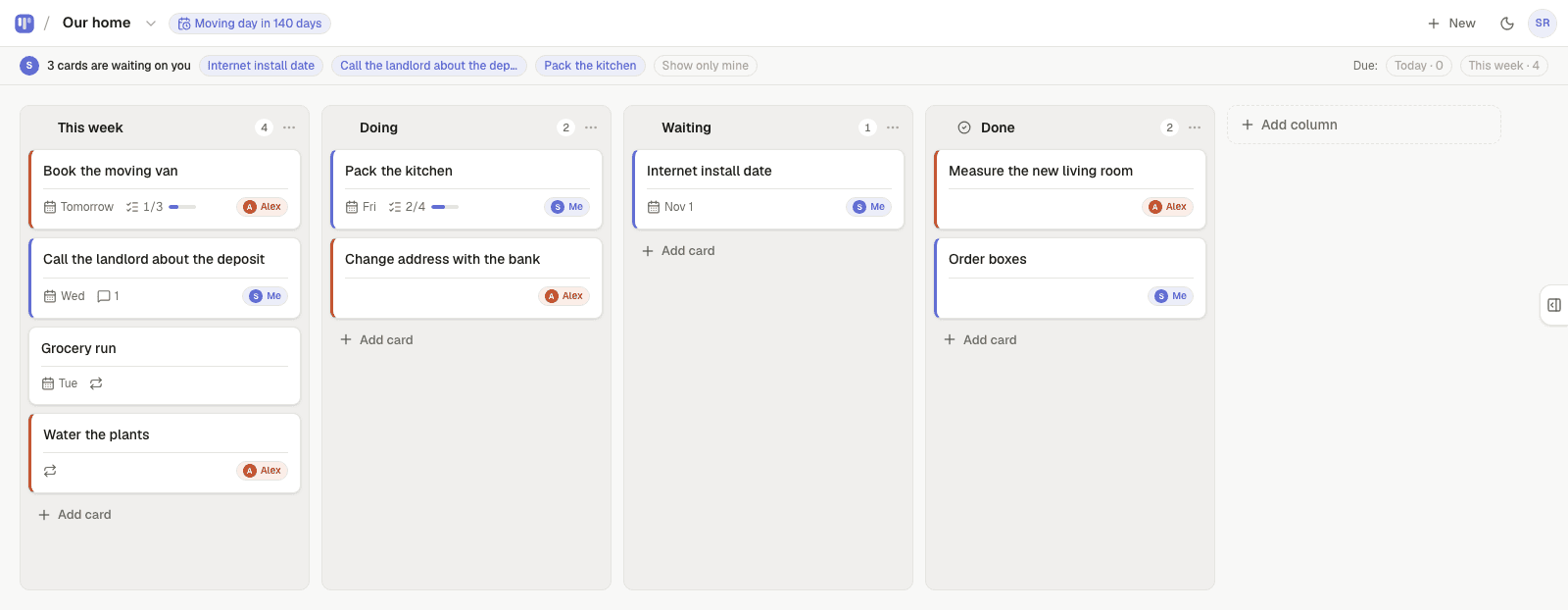
The board is yours and private until you share it. If you work with one other person, invite them from the board — they join free and you can hand them cards, see who's on what, and get a nudge when something is waiting on you.
Imported cards have no owner. If a card is yours, open it and pick yourself; if a date matters, type it or set it in the card. Repeating chores can be put on repeat from the card too.
Why people move a board from Trello
Usually not because Trello is bad — because the board grew smaller than the tool. A two-person or one-person board doesn't need Butler, Power-Ups or a per-seat bill. Simpleban is the same columns and cards, opening in under a second, free forever for you and one more person.
Templates to start from
Questions, answered
- Is the Trello JSON export available on the free plan?
- Yes. Export as JSON is in the board menu under Print, export, and share on every Trello plan. CSV export is the one that needs a paid plan — Simpleban reads the JSON.
- Does importing change anything in Trello?
- No. The export is a copy; your Trello board stays exactly as it was. You can keep both for a while and delete the Trello board when you're sure.
- Can I import several boards?
- Yes — one file per board, as many as you like. Each import creates its own board in Simpleban; there's no limit on boards or cards.
- What about my Trello members?
- Simpleban is for one or two people, so members aren't mapped. Invite the person you work with (free) and hand them their cards; it takes a minute for a typical board.
- Can I import from Asana, Notion or Todoist?
- Not yet. Today the importer reads Trello's JSON. Other imports are on the list; tell us which one you need via the feature requests page.
Bring your board over
Sign up free, choose Import from Trello, drop the file. About a minute from Trello to your new board.
Your board starts as “Client project” — columns and example cards you can change or delete.
Try the live demo board first